Your day, in orbit.
A calendar that lives in your Mac's menu bar. See what's next at a glance, join meetings in one click, and get back to work.
A calendar that lives in your Mac's menu bar. See what's next at a glance, join meetings in one click, and get back to work.
What it does
Orbit reads the calendars your Mac already syncs — iCloud, Google, Exchange, anything in Apple Calendar — and puts them where you can always reach them.
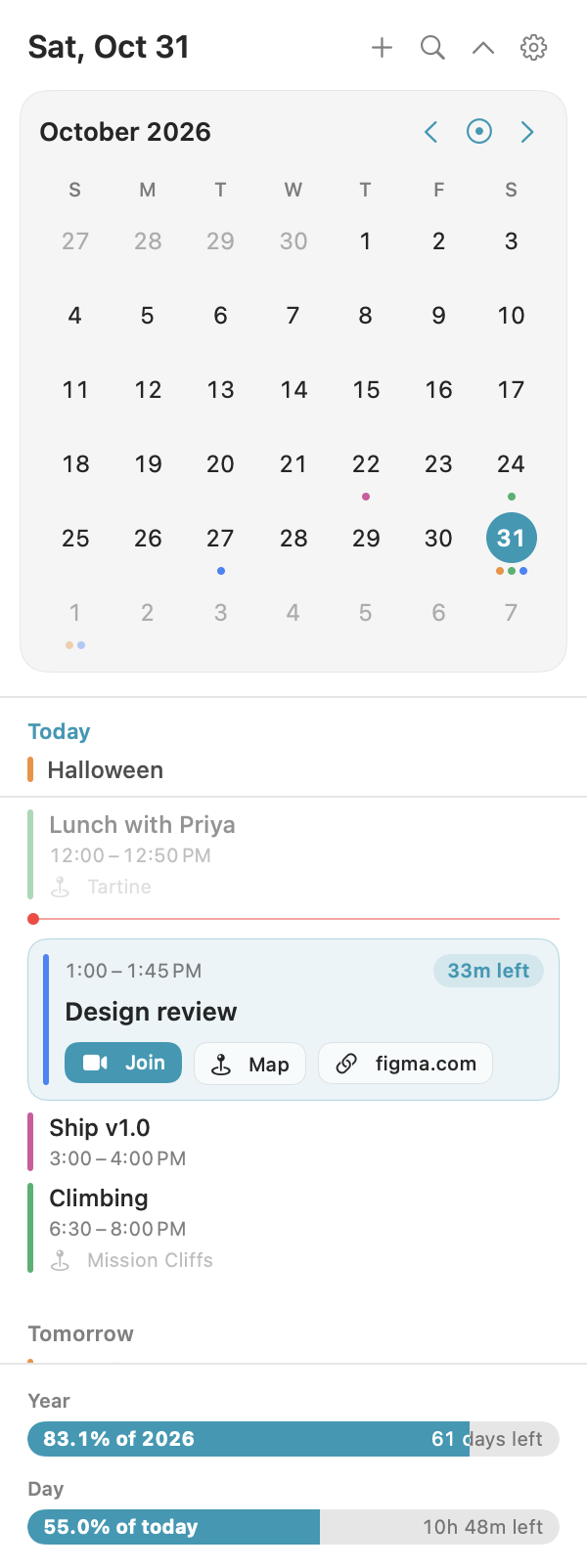
The meeting you're in, or the one starting in the next ten minutes, expands with everything you need: how long is left, and one-click buttons to join, find the room, or open the doc.
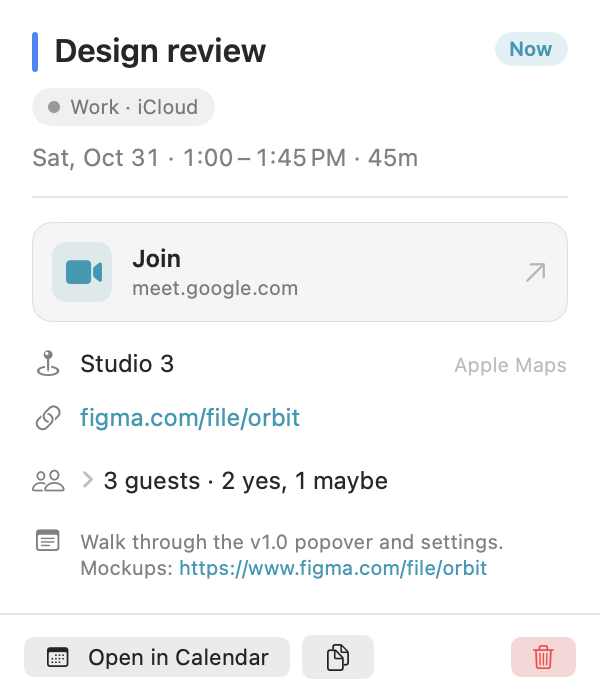
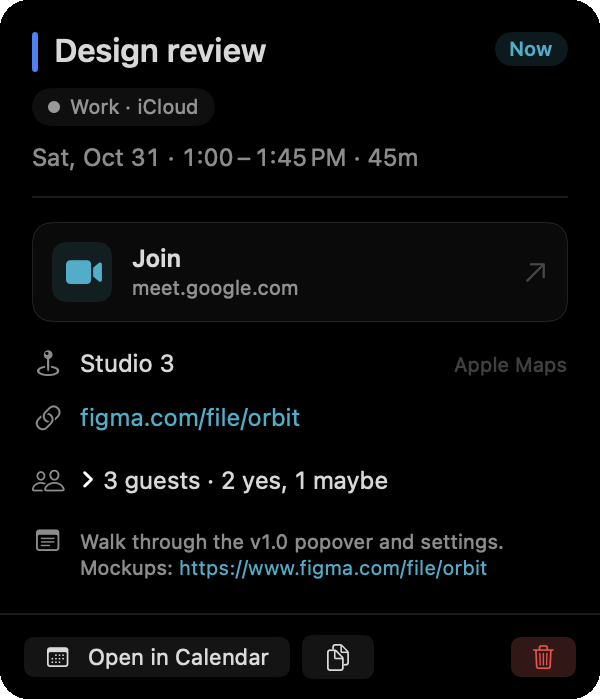
Click any event for the full picture: which calendar it's on, when, the video link, location, links, who's coming and the notes — with links you can click.
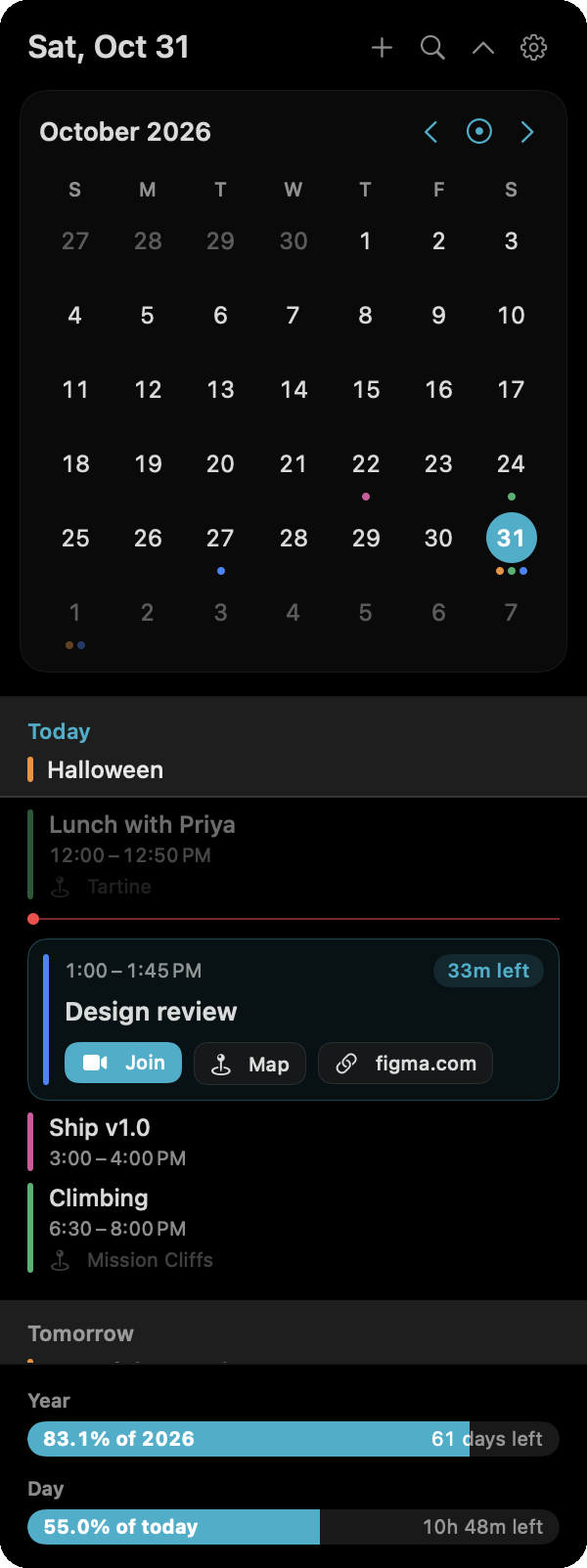
A month grid with colored dots for each calendar, and a scrolling agenda of the days ahead. Each day's all-day events stay pinned at the top while you scroll through it.
Made to fit
A Settings window with a live preview of the calendar, so you see every change the moment you make it.
Date, time, next meeting or week number, in any order and format you like.
From compact to extra large, with three spacing options for the calendar and the agenda.
Follows your Mac, or pick one and stick with it.
Hide calendars, filter out titles like "Focus time", hide all-day or past events.
Locations open in Apple Maps or Google Maps, your choice.
Create an event with a location, link and notes without leaving the menu bar.
Keyboard
Two global shortcuts you can change, and a handful more inside the calendar.
Private by design
Orbit has no account, no server and no analytics. It reads your events through Apple's own calendar framework, the same way Calendar does, and that's all it asks permission for.
Questions
Anything your Mac syncs in Apple Calendar: iCloud, Google, Microsoft Exchange and Outlook, Yahoo, and subscribed calendars. Add accounts in System Settings › Internet Accounts and they show up in Orbit.
Yes. Orbit is free and open source under the GPL-3.0. The code is on GitHub, and you're welcome to build it yourself.
A Mac running macOS 26 Tahoe or later.
To show your events. That's the only permission Orbit needs, and nothing is sent anywhere.
Right-click (or two-finger click) Orbit in the menu bar and choose Quit Orbit.
Yes — turn on Launch at login in Orbit's Settings › General.